
Abstract
The RMC-DI/O is capable of sophisticated motion control using small and inexpensive Programmable Controllers with simple discrete I/O. An RMC with a DI/O communication interface is capable of four discrete I/O interfaces: Command Mode, Input to Event Mode, Parallel Position Mode, and Parallel Event Mode. Of these communication modes, Parallel Event mode is the best fit when the motion can be pre-programmed using the RMC’s Event Control feature and parallel inputs can be provided to the RMC—such as through a PLC or thumb-wheel switch.
This technical brief will compare the discrete I/O interfaces of the RMC100 series product-line, describe implementing Parallel Event Mode, and finally provide a sample application using Parallel Event Mode.
DI/O Communication Mode Comparison
The following chart lists the advantages and disadvantages of each communication mode. Each word or phrase in bold print appears in RMCWin’s online help index.
|
Interface Mode |
Advantages |
Disadvantages |
|
Parallel Event Mode |
|
|
|
|
|
|
|
Parallel Position Mode |
|
|
|
|
|
|
|
Command Mode |
|
|
|
|
|
|
|
Input to Event Mode |
|
|
Implementation
The following diagram shows the electrical control connections of a single-axis hydraulic system using RMC-DI/O in Parallel Event Mode (the PC and its RS232 cable are needed only during setup):
This document discusses only the connections between the Programmable Controller and the RMC. For details on the transducer and drive wiring, look up Wiring Notes in the RMCWin index.
The following points describe the operation of Parallel Event mode:
Parallel Event mode uses the following digital inputs and outputs. The following table is intended to match input and output number with the names associated with each. Their uses will be described below.
|
CPU DI/O: |
|
|
Input 0 |
Run/Stop |
|
Input 1 |
Unused |
|
Output 0 |
Ready |
|
Output 1 |
Acknowledge |
|
Communication DI/O: |
|
|
Inputs 0-7 |
Axis 0 Event Step |
|
Inputs 8-15 |
Axis 1 Event Step |
|
Input 16 |
Axis 0 Trigger |
|
Input 17 |
Axis 1 Trigger |
|
Outputs 0-7 |
Status Bits |
|
Sensor DI/O (required only if more than two axes are used): |
|
|
Inputs 0-7 |
Axis 2 Event Step |
|
Inputs 8-15 |
Axis 3 Event Step |
|
Input 16 |
Axis 2 Trigger |
|
Input 17 |
Axis 3 Trigger |
|
Outputs 0-7 |
Unused |
Parameters and tables used by the RMC are configured using the RMCWin software and stored in the RMC Flash memory.
All axes are initialized by raising the Run/Stop (CPU input 0) line on the RMC, and all axes are immediately stopped by the falling of the Run/Stop line on the RMC. Therefore, an emergency-stop button often controls the Run/Stop input.
The Ready (CPU output 0) line matches the Run/Stop input line to give feedback to the controlling system that the RMC is ready to take commands.
When the Run/Stop line is set, the Trigger inputs for all axes are monitored. When the Trigger switches state (either from on to off or vice versa), then all nine inputs for the axis (Trigger plus Event Step) are monitored; if they remain stable for a user-configured duration (between 2 and 20 milliseconds) a new command is issued to the RMC.
When a command is received, the Event Step number given in binary on that axis’s eight Event Step inputs is read and the axis begins an event sequence with that event step.
Each time the Run/Stop changes, or a new command is executed on one or more axes, the Acknowledge (CPU output 0) line toggles.
It is important to wait for the Acknowledge line to toggle before using the Status Bits; otherwise, the bits may reflect the status of a previous move. For example, suppose the In Position bit is set from a previously completed move. If the Acknowledge line has not toggled before the PLC uses the In Position bit, the newly commanded move will look as though it completed immediately.
The eight Status outputs (DI/O outputs 0-7) are used for the following:
|
DI/O Output # |
2-4 Axis RMC’s |
5-8 Axis RMC’s |
|
0 |
Axis 0 In Position |
Axis 0 In Position |
|
1 |
Axis 1 In Position |
Axis 1 In Position |
|
2 |
Axis 2 In Position |
Axis 2 In Position |
|
3 |
Axis 3 In Position |
Axis 3 In Position |
|
4 |
Axis 0 Stop on Error |
Axis 4 In Position |
|
5 |
Axis 1 Stop on Error |
Axis 5 In Position |
|
6 |
Axis 2 Stop on Error |
Axis 6 In Position |
|
7 |
Axis 3 Stop on Error |
Axis 7 In Position |
Using the RMCWin software, these outputs may be marked to be user-controlled instead of being used for the above default assignments. User-controlled outputs are set and cleared from the Event Step table.
The following general steps must be taken to set up a system using Parallel Event mode:
Design the System
Designing the system begins with selecting the appropriate method of communication. First, decide whether one of the RMC’s field bus solutions fits your application, and if you decide to use digital I/O, then decide which of the communication modes fits your application.
If you decide to use digital I/O using Parallel Event mode, then you must design the wiring of the system and the event step table.
Program the Event Step Table
Programming the Event Step table is described in the RMCWin online help. The event step table will hold the majority of the controlling logic. Be sure to save your Event Step table both in the RMC Flash memory and on disk from RMCWin.
Configure the RMC Communication
The following steps are required to configure the Communication DI/O from RMCWin:
Connect the serial port to the module being configured.
On the Tools menu, click Module configuration.
In the Slots list, select the Communication DI/O item, and then click Slot options.
In the DI/O mode list, click Parallel Event mode.
If you need to invert any inputs or outputs to match your hardware, select the appropriate check boxes in the Invert inputs and Invert outputs areas.
Click Mode options.
In the Input Filter box, enter the number of milliseconds you wish to have the RMC wait for the inputs to settle. You may need to change this more than once if you are not sure how long you should delay. If you don’t need the speed, it may be wise to be conservative and select 20ms.
If desired, you may select to control any of the outputs by selecting the appropriate User-controlled outputs check boxes.
Click OK.
Click Update RMC.
The Update Module Configuration dialog box will be displayed to indicate the progress. If the module could not be reset automatically, you may be prompted to reset the module manually.
Wire, Test, and Tune the System
Wiring and testing should follow your design. Tuning the system is described in the RMCWin online help. Be sure to save your tuning parameters both in the RMC Flash memory and on disk from RMCWin.
Sample Application
The customer needs a single axis to move between two positions. The user will select one of ten different positions to which the cylinder will extend and then retract back to a home position. The home position will be defined at 0”. The ten extend positions are required by different products that may be produced and are known ahead of time (half-inch steps between 4” and 9.5”). The user wishes to use a thumb-wheel to select the set (sequence) and a button to initiate the motion.
We will assume that the customer decided 5 inches per second was the maximum safe extension speed, and that 10 inches per second was the maximum safe retracting speed.
Design the System
The RMC controls based on the transducer or encoder counts received. However, counts rarely correspond to meaningful engineering units. Therefore, the RMC allows the user to convert counts into meaningful position units by using Scale and Offset parameters. Refer to RMCWin’s online documentation for details. In this application, the position units used will be thousandths of an inch. Therefore, speeds will be given in thousandths of an inch per second.
Because only one axis of MDT feedback is used, the smallest RMC module available—an RMC100-M1-DI/O module—will be used.
Using Parallel Event mode, the thumb-wheel can be used to trigger an event sequence and will select the starting event step number. The following wiring diagram is used:
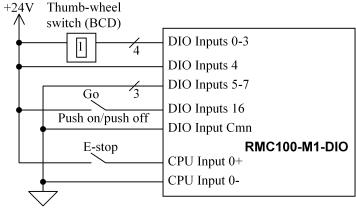
Notice that the eight Event Step number bits are wired to hold the following values:
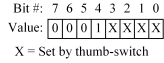
When this binary number is converted to decimal, the selectable step numbers range is 16-25. The reason bit 4 is tied high is to avoid using event step 0, without which the range would be 0-15. Event step 0 is used—by convention—as a step which does nothing.
Program the Event Step table
We will use the steps selected by the thumb-wheel (16-25) to perform the first move. Each of those ten steps will wait until the axis is in position, and then skip to step 15, which will retract back to the home position, and then return to step 0 when in position. The following screen shot demonstrates this table:
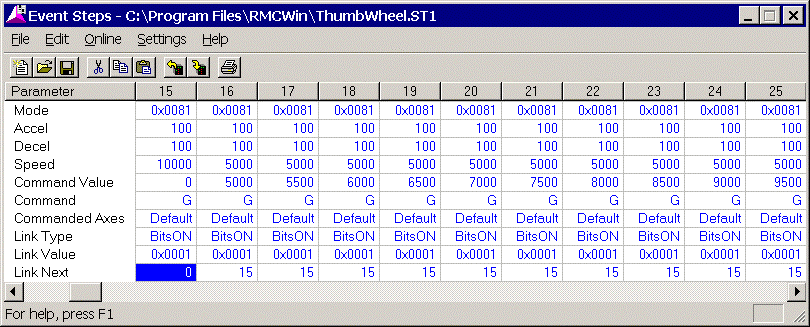
This table must be downloaded to the module, and then stored in the RMC’s Flash memory.
Configure the RMC Communication
The steps required for this procedure are described in the Implementation section of this Technical Brief. You should not need to invert any inputs or outputs, nor should you need to select any additional user-controlled outputs.
Wire, Test, and Tune the System
The system should be wired as described in the design above. Test the functionality of the final system, and finally tune the system as described in the RMCWin online help.
Reference
Throughout this technical note, references are made to RMCWin online help index entries. To obtain the RMCWin software package, contact Delta Computer System’s web site (www.deltacompsys.com).
Copyright (c) 1997-2015 by Delta Computer Systems, Inc.