
Abstract
The RMC-DI/O is capable of sophisticated motion control using small and inexpensive Programmable Controllers with simple discrete I/O. An RMC with a DI/O communication interface is capable of four discrete I/O interfaces: Command Mode, Input to Event Mode, Parallel Position Mode, and Parallel Event Mode. Of these four communication modes, Command Mode is the most flexible; it allows changing parameters and retrieving positions, speeds, errors and other status information from the motion controller using simple discrete I/O.
This technical brief will compare the four discrete I/O interfaces of the RMC100 series product-line, describe implementing Command Mode, and finally provide a sample application using Command Mode.
DI/O Communication Mode Comparison
The following chart lists the advantages and disadvantages of each communication mode. Each word or phrase in bold print appears in RMCWin’s online help index.
|
Interface Mode |
Advantages |
Disadvantages |
|
Command Mode |
|
|
|
|
|
|
|
Parallel Event Mode |
|
|
|
|
|
|
|
Input to Event Mode |
|
|
|
|
|
|
|
Parallel Position Mode |
|
|
Implementation
The following diagram shows the electrical control connections of a single-axis hydraulic system using RMC-DI/O in Command Mode (the PC and its RS232 cable are needed only during setup):
This document discusses only the connections between the Programmable Controller and the RMC. For details on the transducer and drive wiring, look up Wiring Notes in the RMCWin index.
The RMC accepts commands of up to 32 bits and returns 16-bit data words. However, because it has only half that number of inputs and outputs, an extra input and output on the RMC are used to strobe half of the data at a time. The following timing chart and accompanying list of steps illustrate the sequencing of Command Mode:
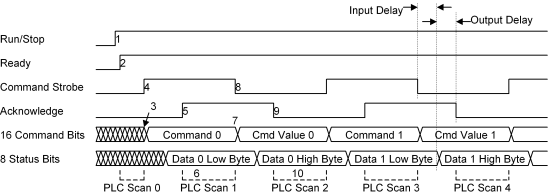
This process begins assuming that Run/Stop and Command Strobe are set low by the PLC. In the steps below inputs and outputs are labeled as ”r;CPU” or ”r;DI/O”. These labels refer to the CPU and DI/O modules of the RMC product, and not of the PLC:
Raise the Run/Stop (CPU input 0) line on the RMC. This is done on startup of the PLC.
Wait for the Ready (CPU output 0) line on the RMC to go high in response to the Run/Stop line. This begins the first PLC scan.
Place the 16-bit Command on the RMC’s Command Bits (DI/O inputs 0-15).
Raise the Command Strobe (CPU input 1) line on the RMC. This ends the first PLC scan.
Wait for the Acknowledge (CPU output 1) line on the RMC to go high. This begins the next PLC scan.
Read the low byte of the data requested by the command from the Status Bits (DI/O outputs 0-7) on the RMC.
Place the 16-bit Command Value on the RMC’s Command Bits.
Lower the Command Strobe on the RMC. Then ends the next PLC scan.
Wait for the Acknowledge line on the RMC to go low. This begins the next PLC scan.
Read the high byte of the data requested by the command from the Status Bits on the RMC.
The process then repeats from step 3 with the next command.
In the above timing chart, notice two time durations are marked: Input Delay and Output Delay. These intervals can be set using RMCWin to any value between zero and twenty milliseconds.
Input Delay indicates how long the RMC waits after seeing the Command Strobe toggle before reading the command data. Change this setting to account for the PLC outputs’ and the RMC inputs’ settling time.
Output Delay indicates how long the RMC waits after writing the requested data before toggling the Acknowledge line. Change this setting to account for the RMC outputs’ and the PLC inputs’ settling time.
To configure Command mode, do the following:
Connect the serial port to the module being configured.
On the Tools menu, click Module Configuration.
In the Slots list, click the Communication DI/O item, and then click Slot options.
In the DI/O mode list, select Command mode.
If you need to invert any inputs or outputs to match your hardware, select the appropriate check boxes in the Invert inputs and Invert outputs areas.
If you wish to use the Communication DI/O counter feature, click either Edge or Quadrature under Counter Type. See Using Counters in the RMCWin online help for more details.
Click Mode options.
Enter the Input delay and Output delay parameters as described above.
Click OK.
Click Update RMC.
The Update Module Configuration dialog box will be displayed to indicate the progress. If the module could not be reset automatically, you may be prompted to reset the module manually.
Sample Application
In this application, a single hydraulic cylinder will be moved over a 30 in stroke. It will extend at a rate of 5 in/sec and retract at a rate of 10 in/sec. At each end of the move, there will be a four-inch acceleration/deceleration zone:
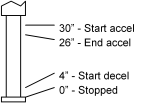
The operator display will include the current actual position.
This application can easily be done using an RMC100-M1-DI/O module using Command Mode. The simplest way to implement this application is to begin by loading the profile table with the two motion profiles used:
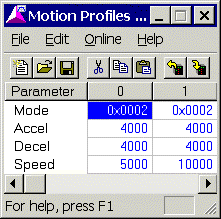
The ’r;2’ in the Mode field indicates that the acceleration and deceleration are given as distances. For details on the motion profile table, look up Profiles in the RMCWin online help.
This profile table and the tuning parameters can either be stored in the RMC’s Flash memory, or stored in the Programmable Controller and downloaded using the Set Parameter commands. We’ll assume they are stored in the Flash. See the Set Profile and Set Parameter topics in the RMCWin online help for details on setting these values from the Programmable Controller.
Reference
Throughout this technical note, references are made to RMCWin online help index entries. To obtain the RMCWin software package, contact Delta Computer System’s web site (www.deltacompsys.com).
Copyright (c) 1997-2015 by Delta Computer Systems, Inc.